How to check the price adjustments per level
Adjustments stack across levels — Portfolio, Market, and Property. Here’s how to see how they add up.
1
Open the Revenue & Pricing dropdown and select Price Adjustment.
2
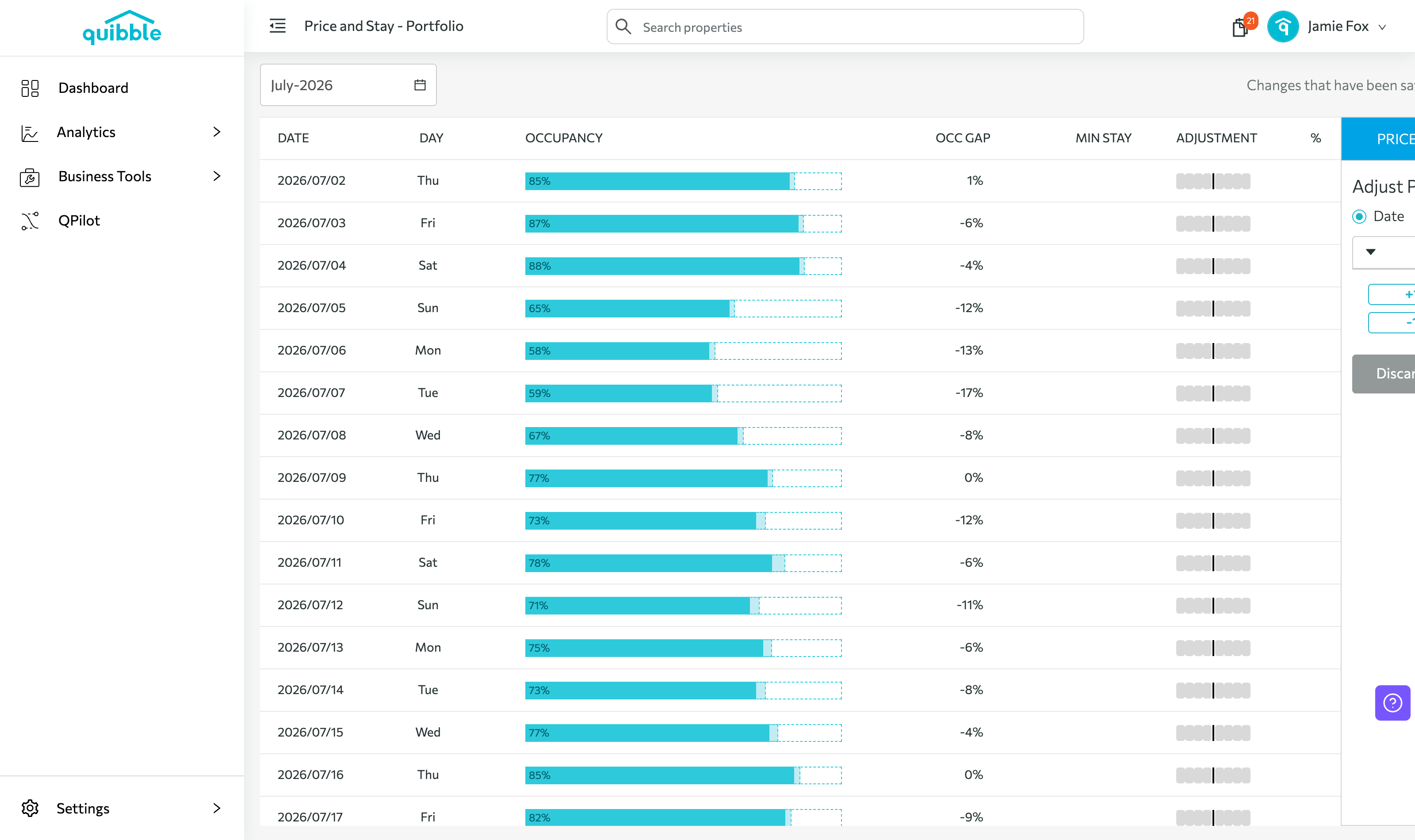
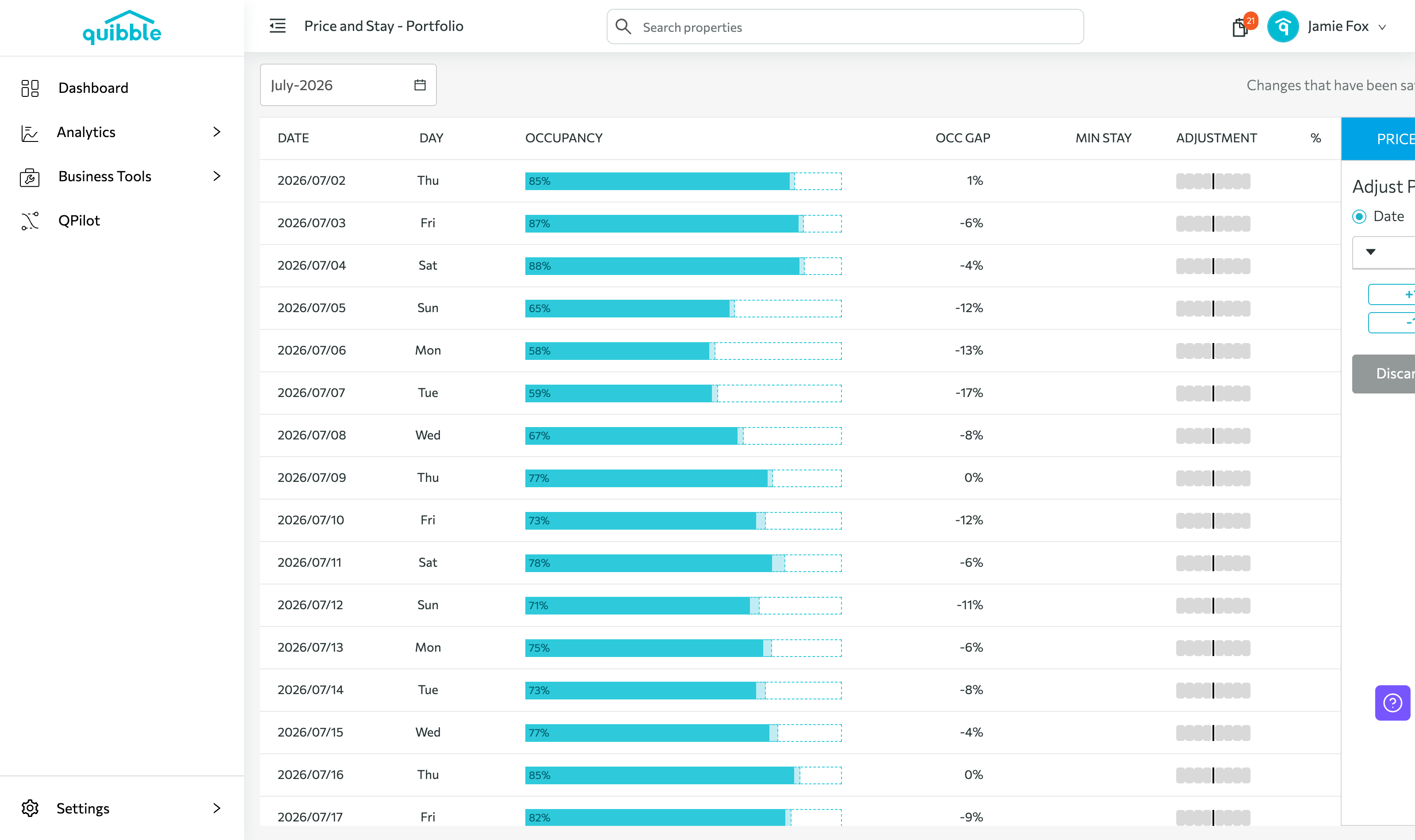
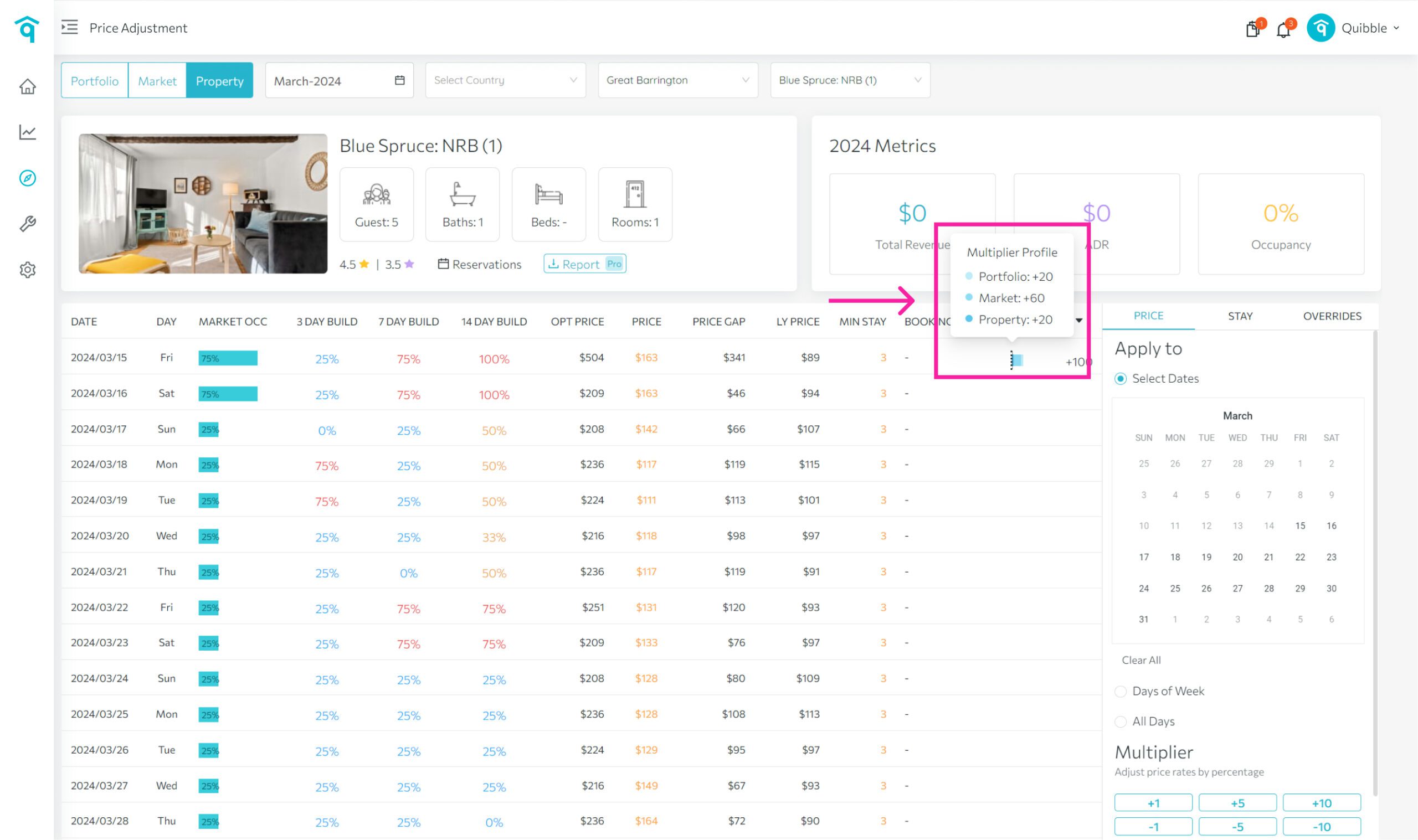
Hover over the dots in the Multiplier column to reveal the breakdown of how the adjustments stack.
How adjustments stack (example)
1
A 5% Portfolio-level multiplier applies across everything.
2
A 10% Market-level multiplier on top brings Bentonville to 15% total.
3
A 5% Property-level multiplier then makes 20% cumulative on the Bentonville Base property.
Didn’t find what you needed? Contact us.