Events & Holidays: pricing the dates that matter
An event is a date window that carries its own price multiplier and an optional minimum stay, scoped to whole markets or to specific listings. Holidays work the same way; the type only changes how the entry is labeled.
Open Events & Holidays under Pricing. Both views carry a Status column showing whether each event is applied yet. Classic is the compact table; Enhanced adds an upcoming rail, filters, and this-year-versus-last-year performance per event.
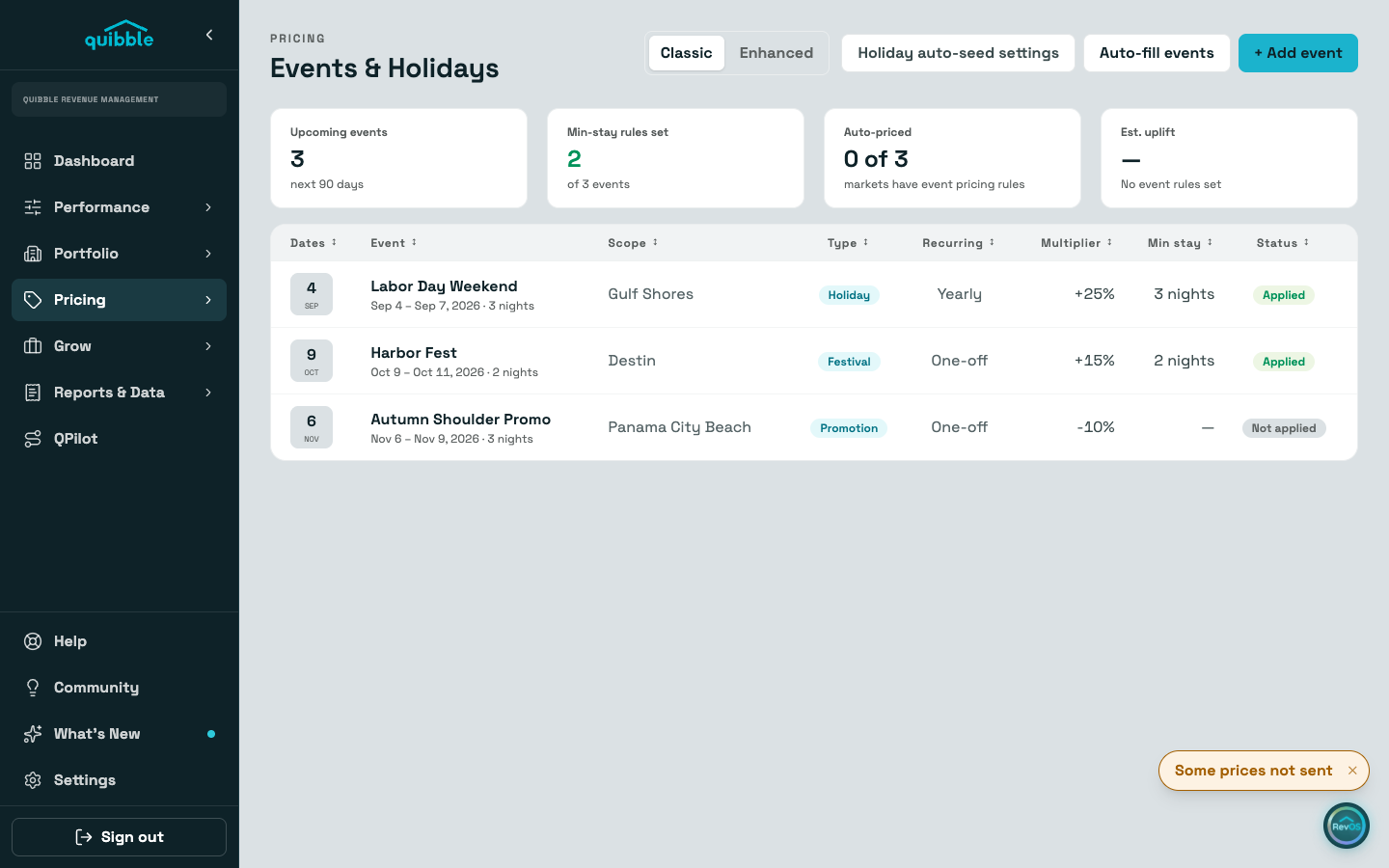
Use Add event: name it, pick Event or Holiday, scope it to markets (the picker collapses a city spelled two ways into one choice) or to specific listings, set the dates, and mark it recurring if it repeats every year. A minimum stay is optional.
To set the price multiplier, open the event and use Edit event. Tick Re-apply pricing now to rebuild affected calendars immediately; left unticked, the change lands on the next pricing run.
Auto-fill events asks Quibble to suggest events for your markets. The analysis runs in the background, so suggestions appear a little later rather than instantly.
Open any event for its detail: market occupancy against last year, and in Enhanced view a booking-window advisory with a quick adjust for the multiplier, the minimum stay, and night-by-night tweaks.
The event’s effect is traceable: it appears as the Event line in a night’s multiplier profile on the calendar and in the Price and Stay table.