
How to connect Smily
Connect Quibble to Smily with a secure one-click sign-in — no API keys to copy.
Our Smily connection is built and ready for its first accounts, and we want to get them pricing the right way from day one. Join now and we onboard you ourselves: we review your comp sets with you, warm every listing in Optimize so you see the prices before anything is pushed, and a revenue manager stays on hand through your first weeks. Nothing is charged for listings you leave off.
Talk to us about Smilyor follow the steps below and pick Smily at sign-up.
In Quibble
- 1
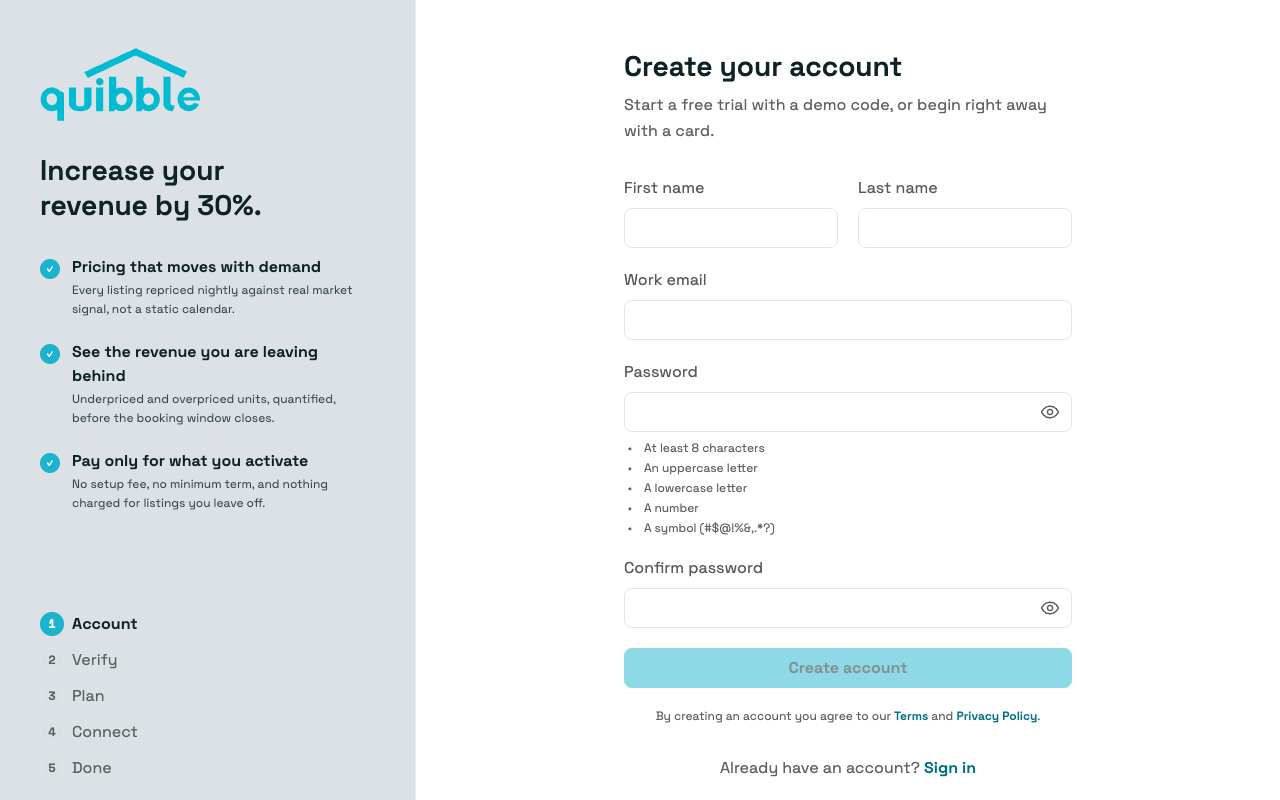
Create your Quibble account
Head to the Quibble sign-up page and create your account with your name, email and a password.
- 2
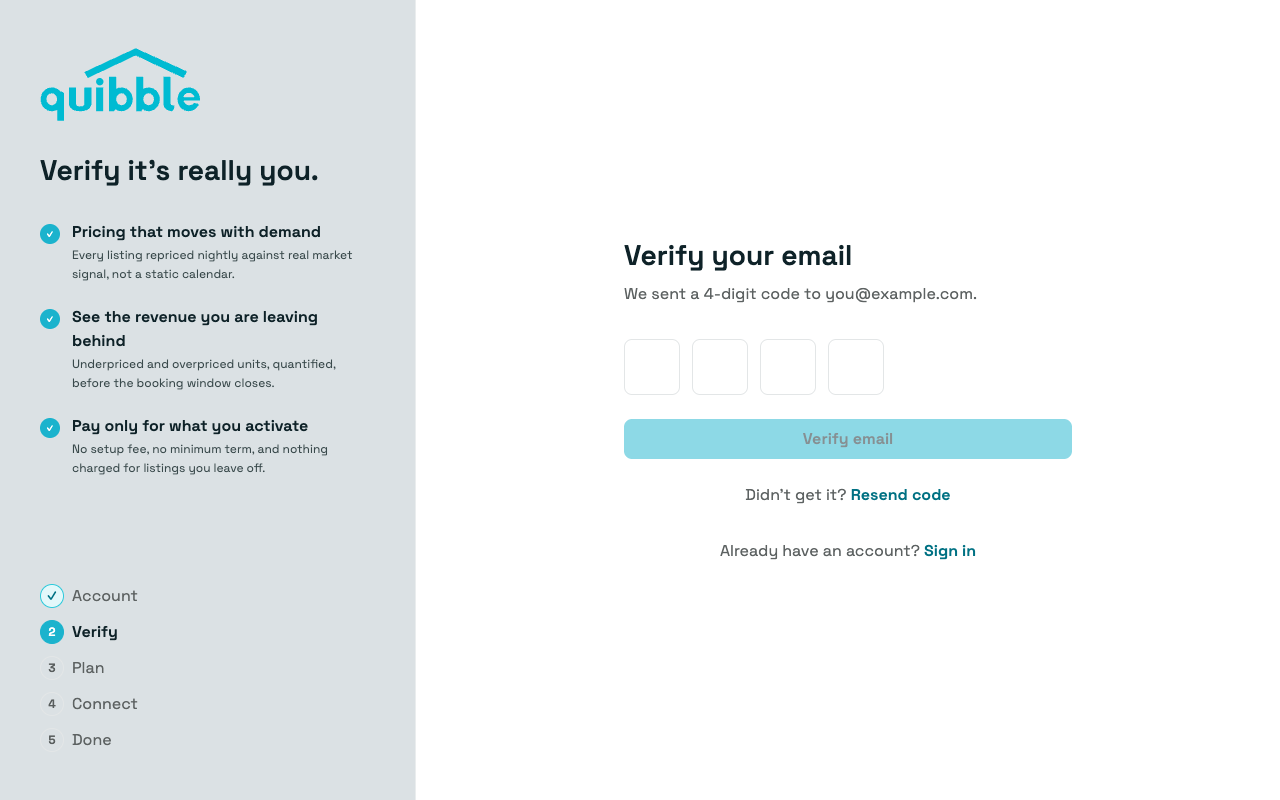
Verify your email
Enter the 4-digit code we email you. Didn’t get it? Resend code sends another.
- 3
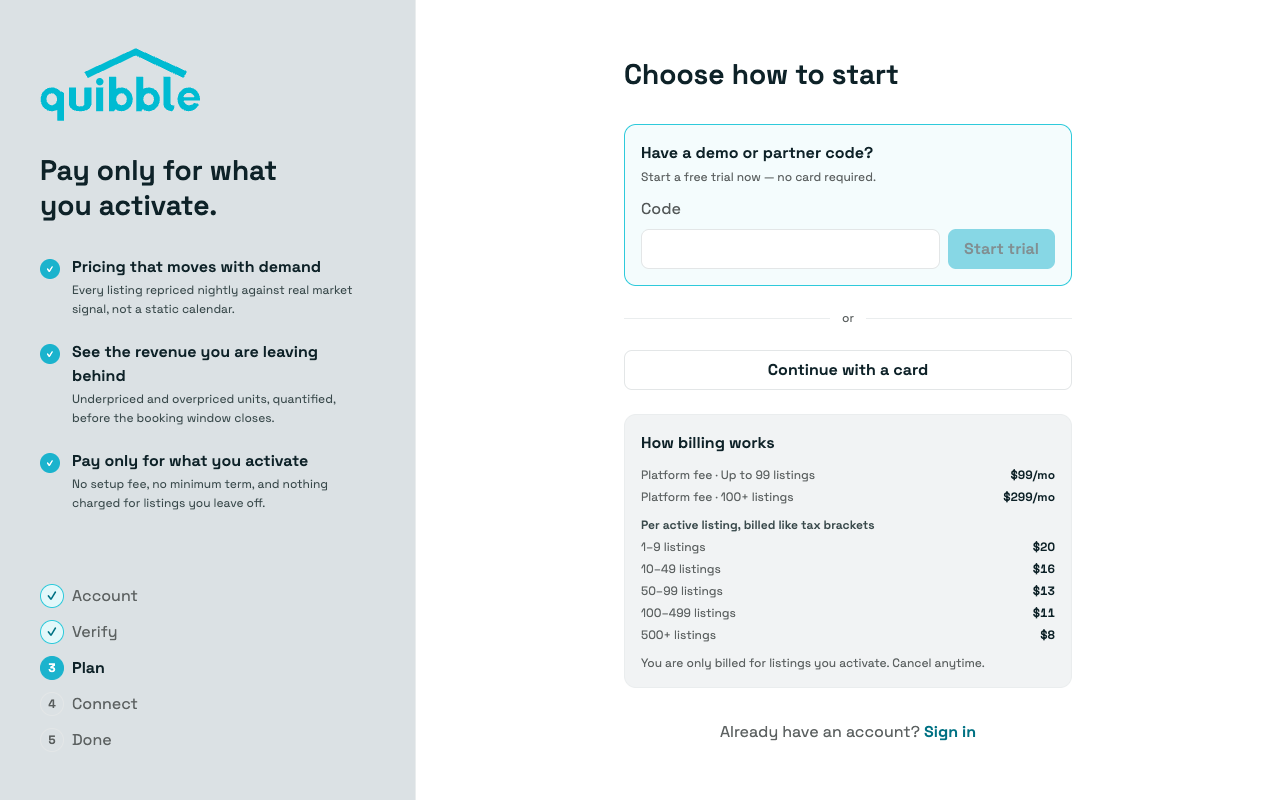
Choose how to start
Start the 14-day trial with the code from your sales meeting, or continue with a card. Per-listing pricing is shown on this step; nothing is charged for listings you leave off.
- 4
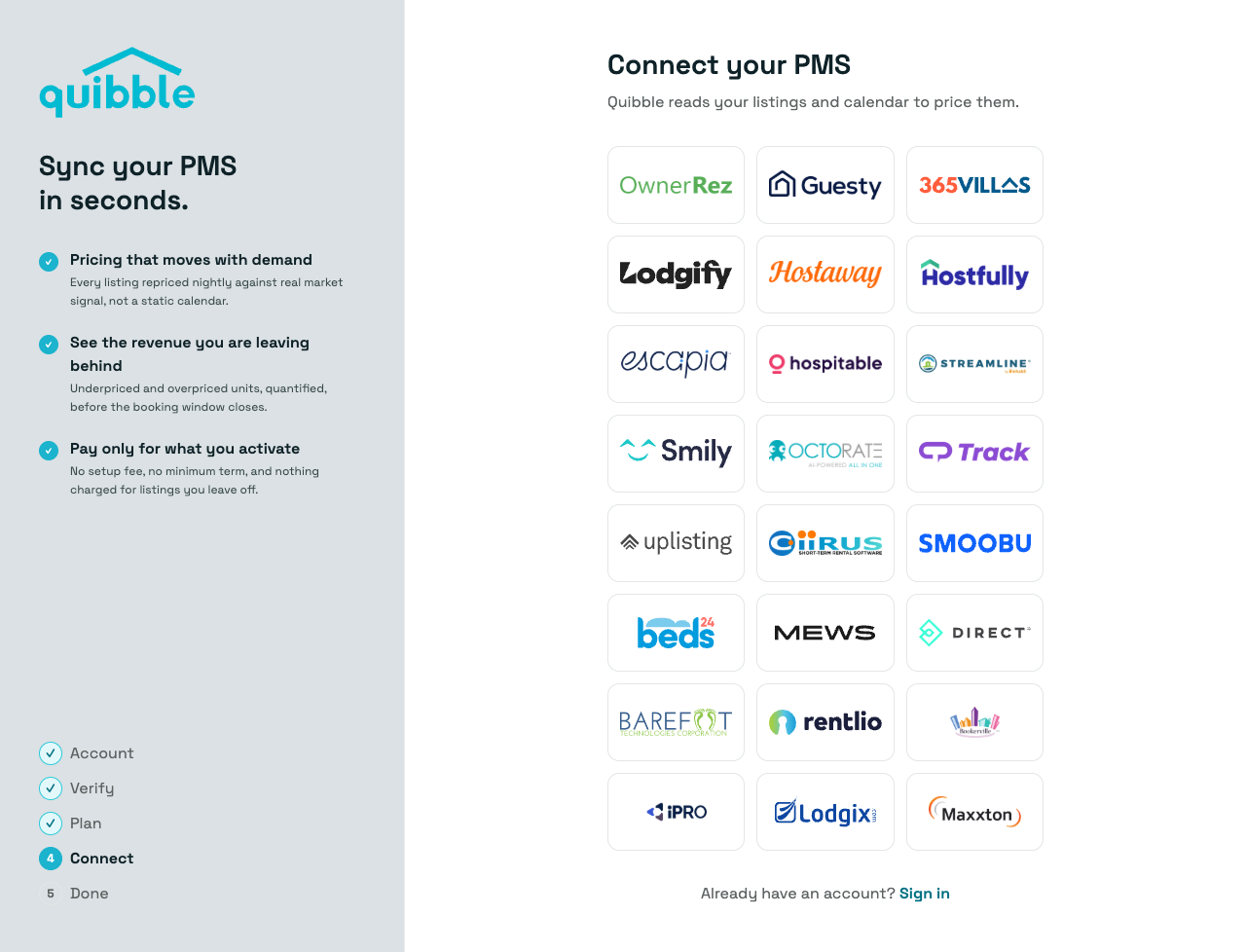
Pick Smily
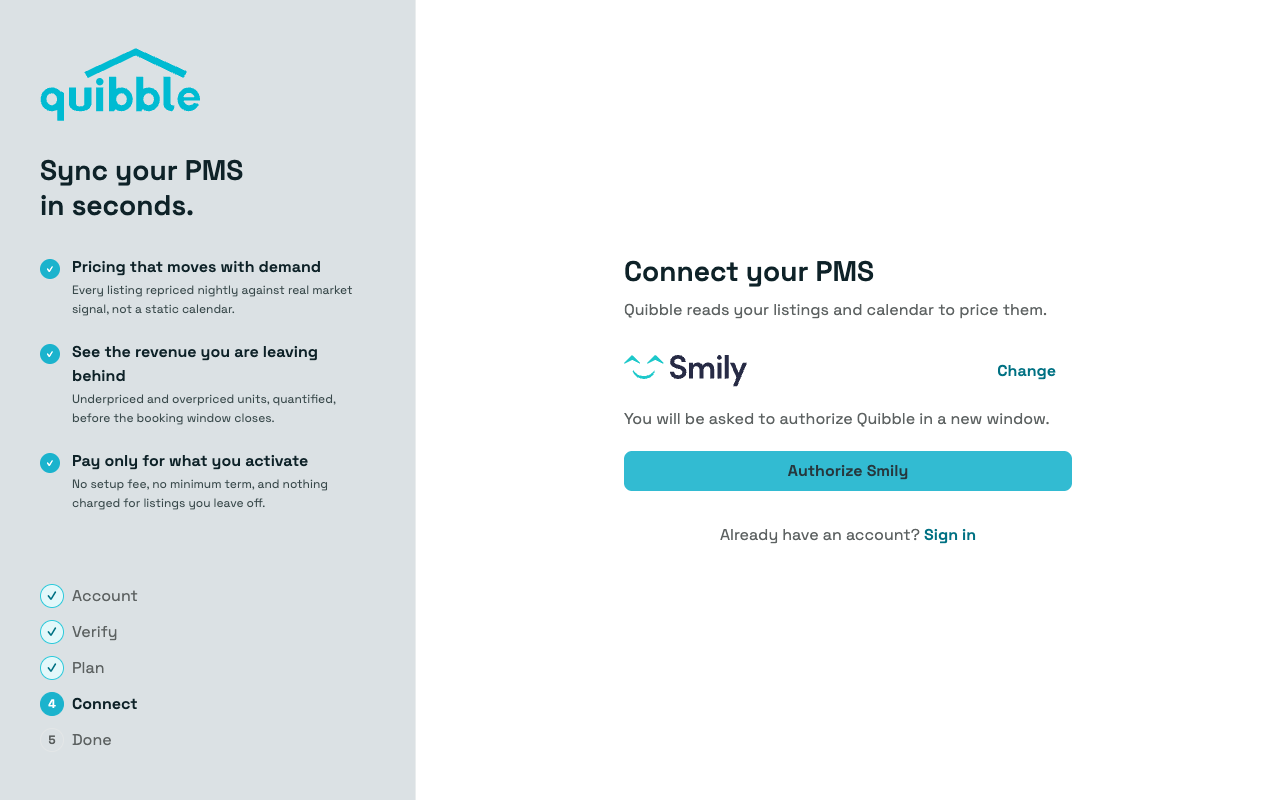
On the Connect step, choose Smily from the grid of property management systems.
- 5
Click “Authorize Smily”
Smily’s secure window opens — sign in and confirm access. There’s nothing to copy beforehand.
- 6
You’re in
Quibble signs you in and the first import starts right away — the progress view narrates each stage as it lands. It usually takes a few minutes, and we email you when your pricing is ready.
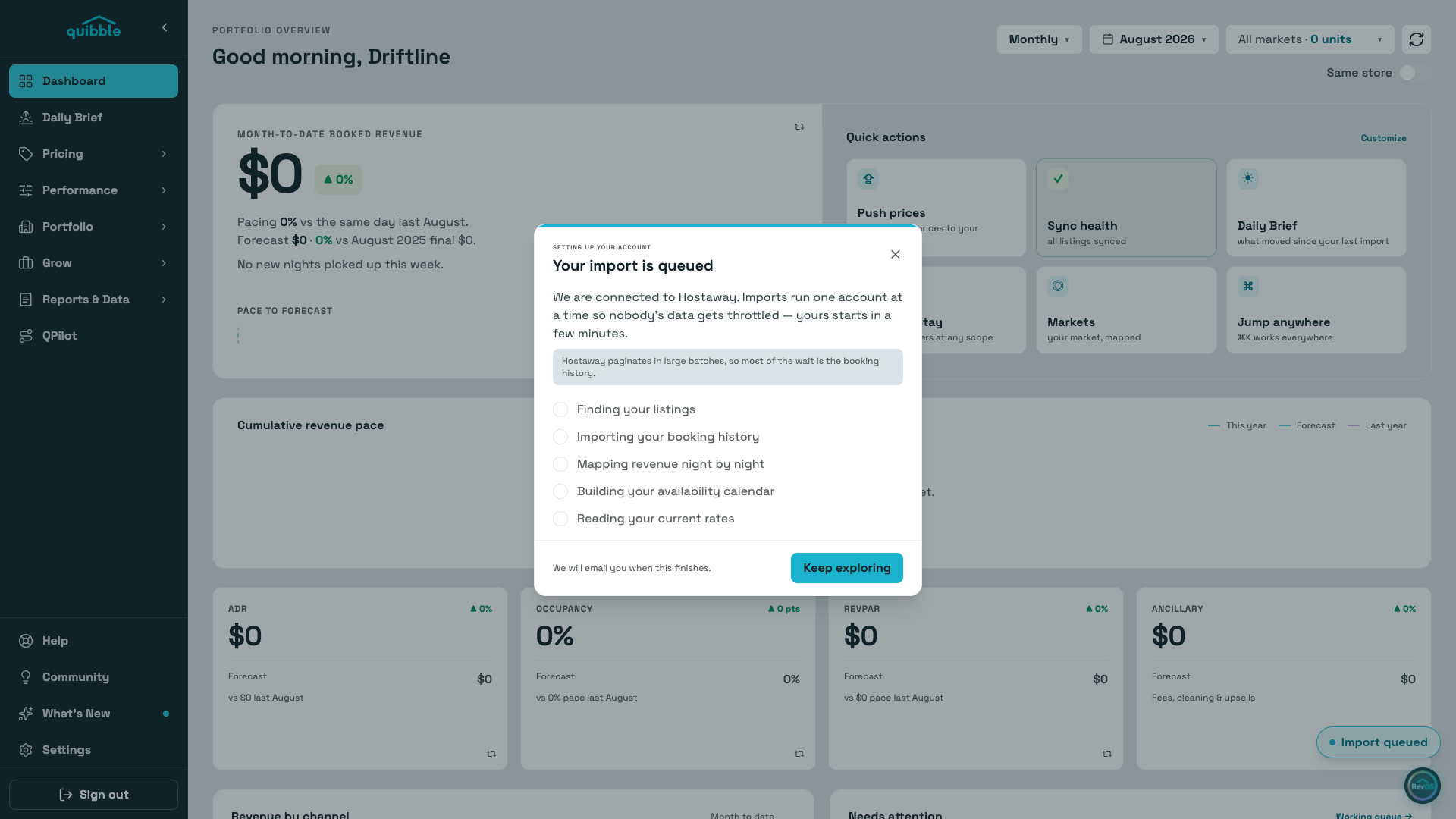
As soon as you connect, Quibble signs you in and starts importing your listings, reservation history, rates, and calendar availability. You can explore the app while the import runs — the progress view narrates each stage as it lands, and pages fill in as your data arrives. We’ll email you when your pricing is ready.